

/console/projects/[projectId] provides a comprehensive view of a single project with tabbed navigation for managing all project-related resources.
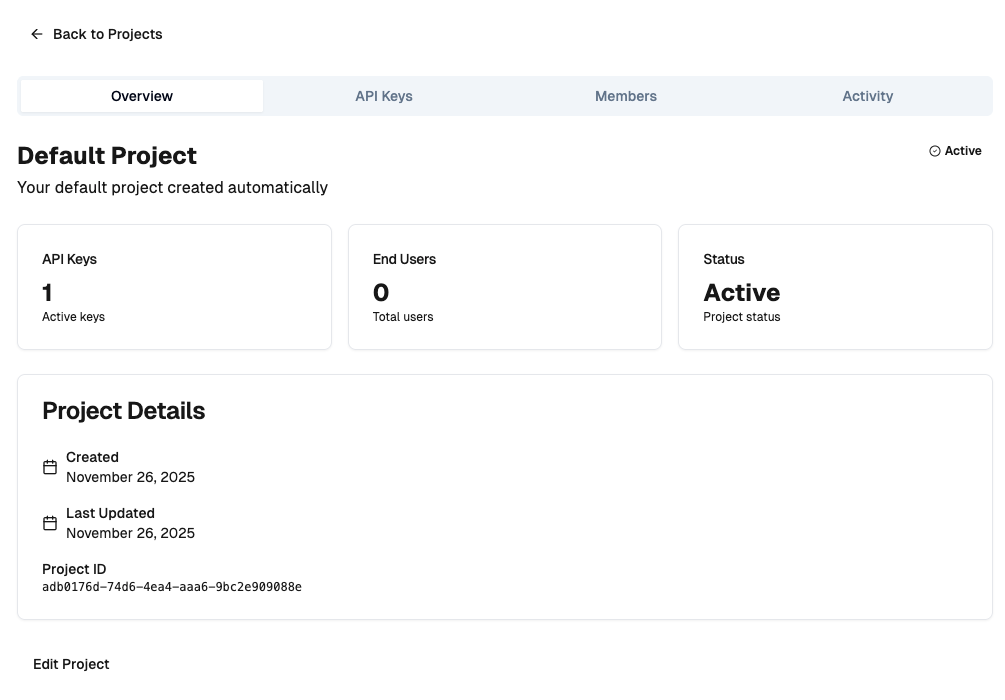
Accessing Project Details
Click on any project from the Projects list (/console/projects) to open its detailed view. The page URL includes the project UUID:
Tabbed Interface
The project details page organizes information into four main tabs:Overview Tab
The Overview tab displays project metadata and key statistics.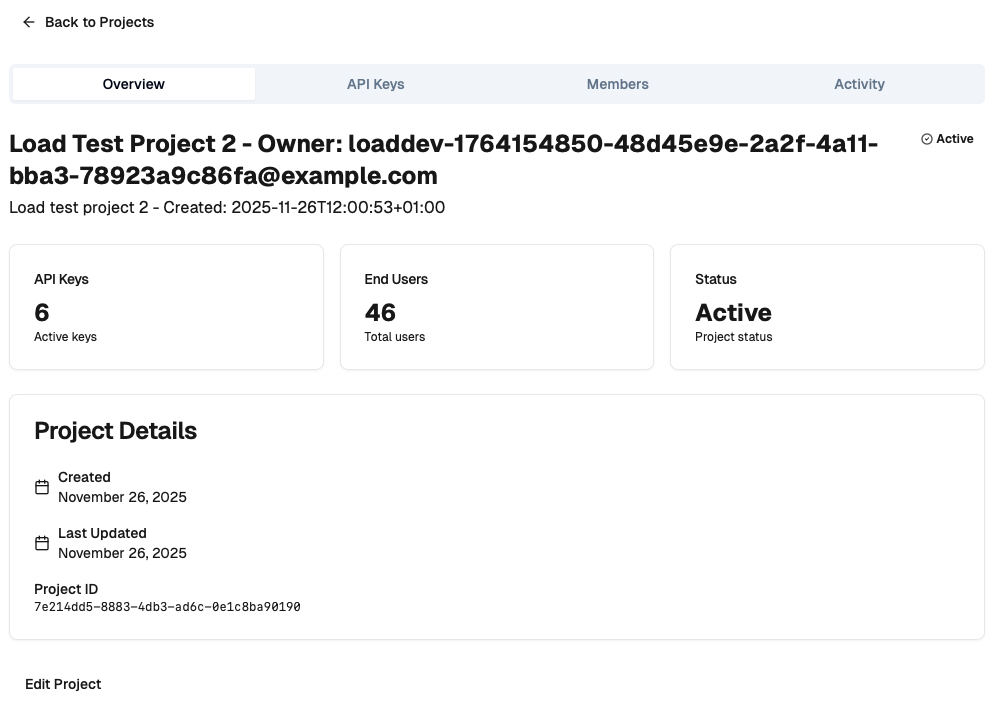
- Project name and description
- Created date and last updated timestamp
- Project status (Active/Inactive)
- Project UUID for reference
- API Keys: Total number of API keys generated for this project
- Members: Total end users registered through this project
- Generations: Total AI generations requested (if applicable)
- Status: Current project health indicator
API Keys Tab
Manage project API keys with full CRUD operations. (((REPLACE_THIS_WITH_IMAGE: project-api-keys-tab-management.png: Screenshot of API Keys tab with key list and generate button))) Features:- View API Keys: List all API keys with key prefix, name, and creation date
- Generate New Key: Create new API keys with optional names
- Copy Key: One-click copy to clipboard (full key shown only once at generation)
- Revoke Key: Delete API keys to prevent further use
- Last Used: Track when each key was last accessed
- Key Prefix: First 8 characters for identification (e.g.,
dk_abc123) - Name: Optional descriptive name for the key
- Created At: Key generation timestamp
- Last Used: Last API access timestamp
- Actions: Copy and delete options
- Click “Generate API Key” button
- Enter optional key name in dialog
- Click “Generate” to create key
- Copy the full key from the success dialog
- Store key securely (it won’t be shown again)
Members Tab
View and manage end users associated with this project. (((REPLACE_THIS_WITH_IMAGE: project-members-tab-filters.png: Screenshot of Members tab with user list and filters))) Features:- Member List: All end users who registered through this project
- Search: Filter members by email address
- Status Filter: Filter by active/inactive status
- Role Filter: Filter by user role
- Pagination: Navigate through large member lists
- Member Details: View individual member information
- Email: User’s registered email
- Full Name: Display name (if provided)
- Role: User role (typically “end_user”)
- Status: Active or inactive indicator
- Joined: Registration date
- Actions: View details, manage access (coming soon)
- All Members
- Active Only
- Inactive Only
- All Roles
- End User
- Developer (if applicable)
- 20 members per page (default)
- Previous/Next navigation
- Page indicator showing current page and total
Settings Tab
Configure project settings and manage project lifecycle.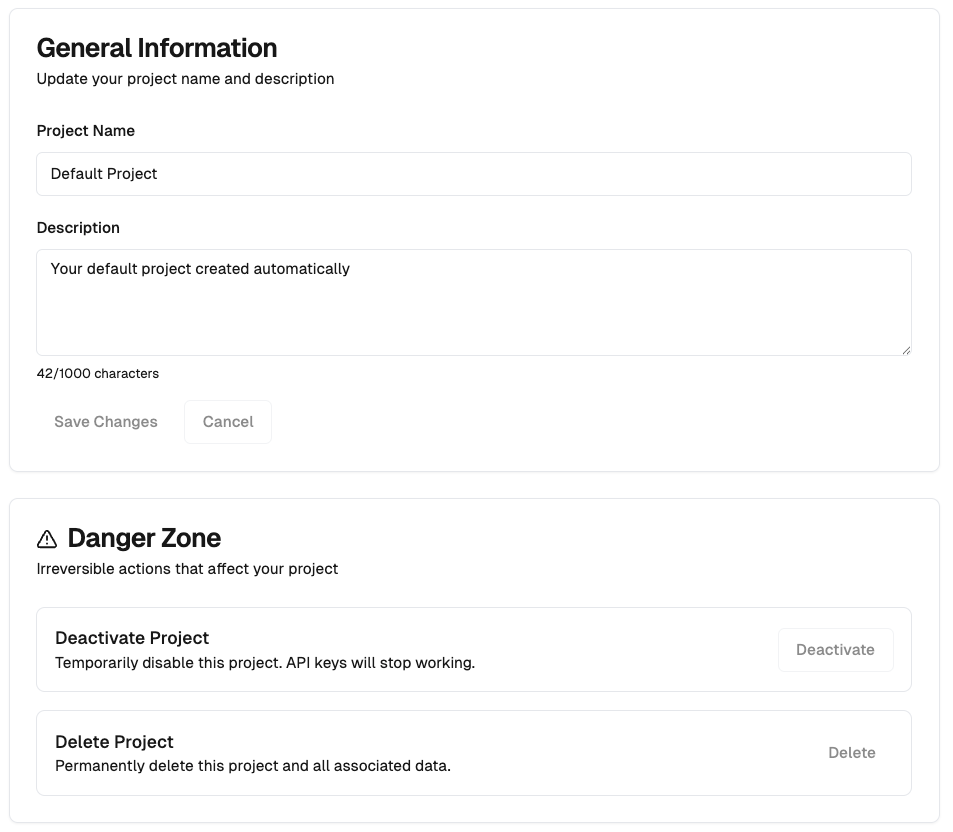
- Project Name: Update project display name
- Description: Modify project description
- Status: Toggle project active/inactive status
- Deactivate Project: Temporarily disable project (can be reactivated)
- Delete Project: Permanently remove project and all associated data
The Deactivate and Delete buttons are currently disabled while the feature is in development. This functionality will be enabled in a future release.
Project Statistics
The Overview tab displays real-time statistics fetched from the Cloud API: API Keys Count:- Active: Project is operational and accepting requests
- Inactive: Project is disabled (API keys won’t work)
- Error: Configuration or system issues detected
Data Loading
The project details page uses React Suspense for optimal loading:- Initial page load shows skeleton UI
- Tab switching is instant (data pre-loaded)
- API key generation shows loading dialog
- Member list pagination shows inline loading
Server Actions
The page uses several server actions for data fetching and mutations: Fetch Project:Security and Permissions
Developer-Scoped Access:- Developers can only access their own projects
- RBAC enforced via
X-Developer-Keyheader - Project ID validated against developer ownership
- Project details page requires
developerrole requireRole(['developer'])enforced in layout- Unauthorized users redirected to dashboard
- Full keys shown only once at generation
- Key prefixes displayed for identification
- Hashed keys stored in database (SHA256)
Navigation
Breadcrumb Trail:- Back to Projects list
- Jump to specific tab via URL hash
- Keyboard shortcuts (coming soon)
Best Practices
API Key Management:- Name keys descriptively when generating
- Rotate keys periodically for security
- Delete unused keys immediately
- Monitor “Last Used” timestamps
- Use separate keys for different environments
- Regularly review active members
- Use search to locate specific users quickly
- Monitor registration patterns for suspicious activity
- Keep member lists organized with filters
- Keep project name and description up-to-date
- Use deactivation to temporarily disable projects
- Back up important data before deletion
- Document configuration changes
Troubleshooting
Project Not Loading
If project details fail to load:- Verify project ID is valid UUID
- Check developer key has access to project
- Ensure project hasn’t been deleted
- Review browser console for API errors
API Keys Not Displaying
If API key list is empty:- Generate a new key to test
- Check API key endpoint permissions
- Verify project is active
- Review backend logs for errors
Members Not Showing
If members list is empty:- Verify end users have registered through project app
- Check project ID is correctly configured in app
- Ensure member registration events are processing
- Review projector logs for errors